
The first time I saw an import error that said Cannot find module ‘lodash’, I spent an hour reinstalling packages. The second time, I checked node_modules and saw that lodash was there. The file was on disk. Node just could not find it. That is when I realized I had no idea how Node actually resolves module paths.
Module resolution is the process of turning a string like ‘lodash’ or ‘./utils’ into an actual file path on disk. It happens automatically and invisibly, and it behaves differently depending on whether you use import or require, which fields your package.json contains, and whether you are running in Node or through a bundler. Understanding how resolution works saves hours of debugging when an import unexpectedly fails.
Short version: Relative paths like ./utils look for the file in the current folder. Bare specifiers like lodash search up the directory tree through every node_modules folder. package.json fields like main and exports control which file is returned.
Relative Specifiers
When you write import ‘./utils’, Node starts in the directory of the current file and checks for a file or directory named utils. If it finds a file, it tries the exact name first, then appends extensions in order: .js, .mjs, .cjs, .json, .node. If it finds a directory, it looks for an index.js inside.
You can see this resolution order by using require.resolve, which returns the exact path Node will load without actually executing the file.
// See exactly which file Node resolves to
console.log(require.resolve("./utils"))
// Output: /home/project/src/utils.js

console.log(require.resolve("lodash"))
// Output: /home/project/node_modules/lodash/lodash.js
This is why renaming a file from utils.js to utils.ts without updating the import works in TypeScript but breaks in Node. Node does not look for .ts files by default. The extension order is defined by Node’s internal module system, and it always tries JavaScript extensions before others.
Bare Specifiers and node_modules
When you write import ‘lodash’, Node has no idea where lodash lives on disk. It starts by checking the same folder as the current file, looking inside node_modules/lodash. If it does not find it there, it moves to the parent folder, then the grandparent, all the way up to the filesystem root.
This hierarchical search is why node_modules can contain the same package in multiple nested folders. Each project might have its own copy. Nested dependencies get their own copies in their own node_modules directories. This structure prevents version conflicts but wastes disk space.
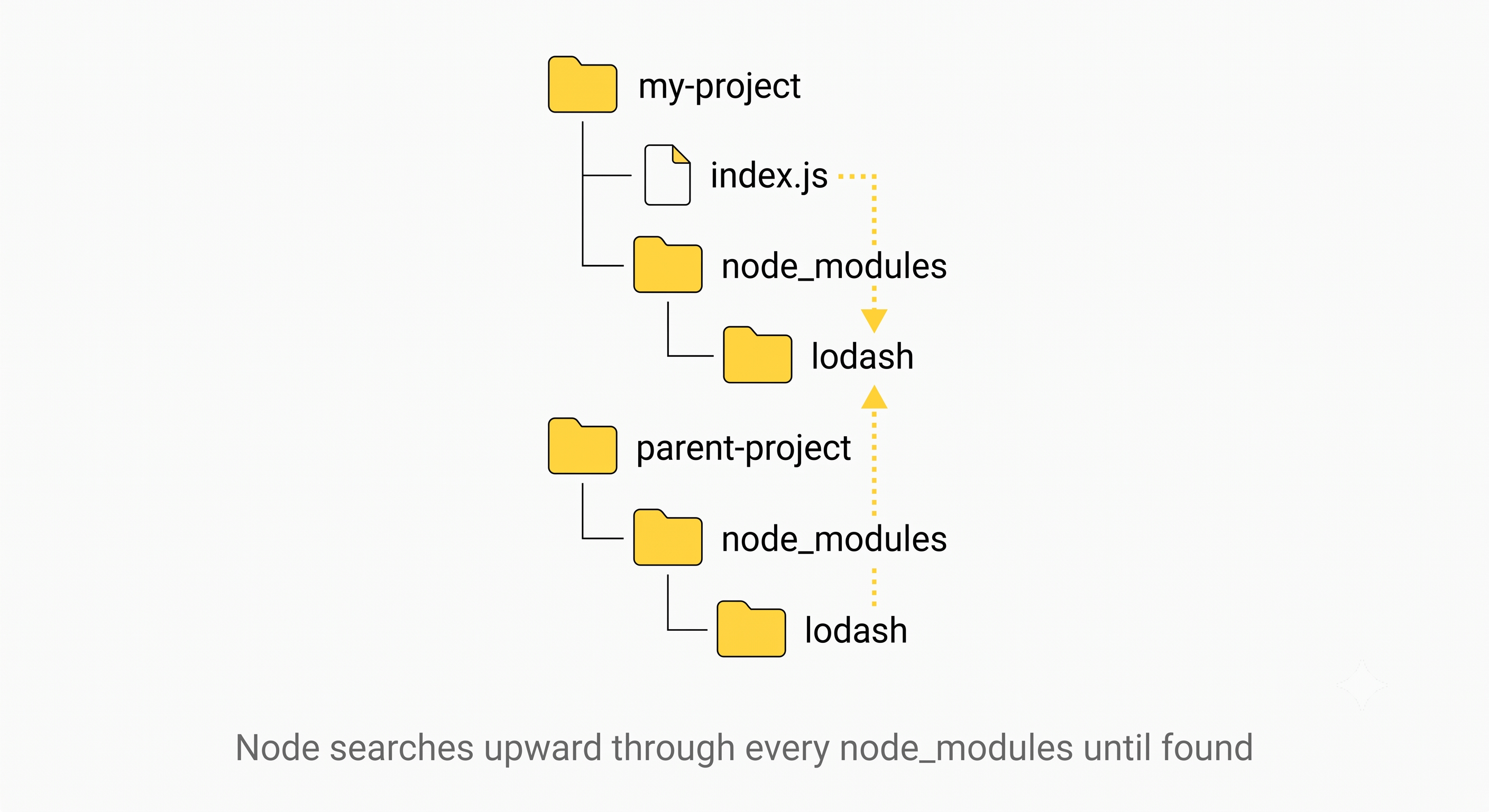
The diagram above shows the search path: Node starts at the importing file and moves up through each parent folder, checking node_modules at every level until it finds the package. Each project folder can have its own node_modules, creating the nested structure shown.
How package.json Controls Resolution
The package.json file tells Node which file to load when a package is imported. The legacy field is main, which points to a single entry file. When you require(‘lodash’), Node reads lodash’s package.json, finds the main field, and loads that file.
The modern field is exports, which provides more control. It maps different subpaths to different files and prevents access to internal files that should not be imported directly.
// package.json with exports field
{
  "name": "my-package",
  "main": "./dist/index.js",
  "exports": {
    ".": "./dist/index.js",
    "./utils": "./dist/utils.js",
    "./internal/*": null
  }
}
If a package uses exports, Node ignores main entirely. This is why some packages unexpectedly break when you try to import from a subpath like ‘lodash/map’ that is not listed in exports. The exports field is also used by bundlers to enable tree-shaking by marking internal files as inaccessible.
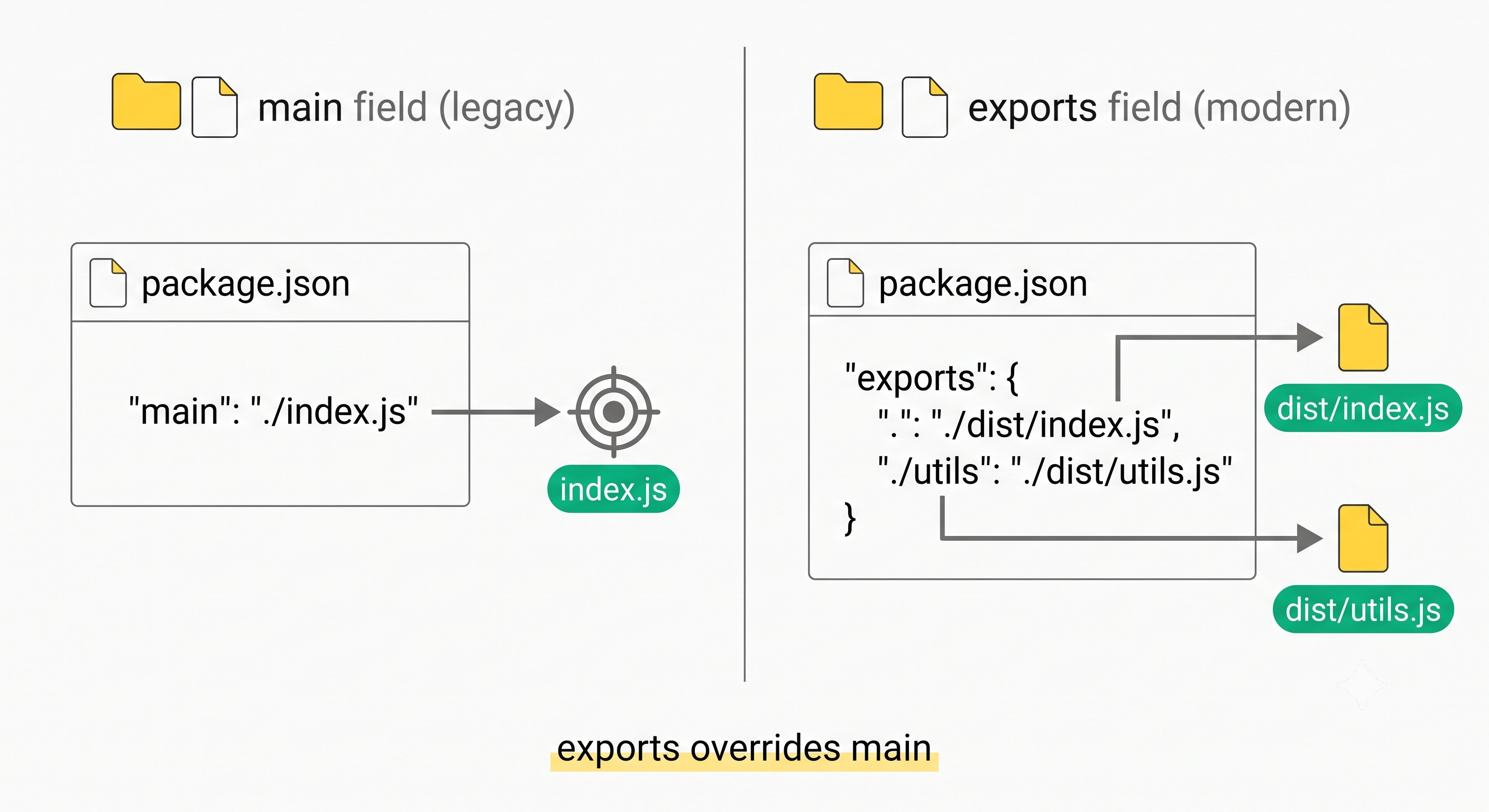
The left side shows the legacy main field pointing to a single entry file. The right side shows the modern exports field mapping multiple import paths to different files for better encapsulation and tree-shaking.
ESM vs CommonJS
import (ESM) and require (CommonJS) resolve modules differently. require is synchronous and can be called conditionally. import is static and hoisted to the top of the file. require resolves at runtime, while import resolves at parse time. Mixing them causes errors that are hard to interpret. The error message usually says something about ‘import’ or ‘require’ not being defined, which leads developers to search for the wrong solution. If package.json has “type”: “module”, use import. If it has “type”: “commonjs”, use require.
// CommonJS — require is dynamic
const fs = require(‘fs’)
if (false) {
  const debug = require(‘debug’)
}

// ESM — import is static
import fs from ‘fs’
// import cannot be inside conditionals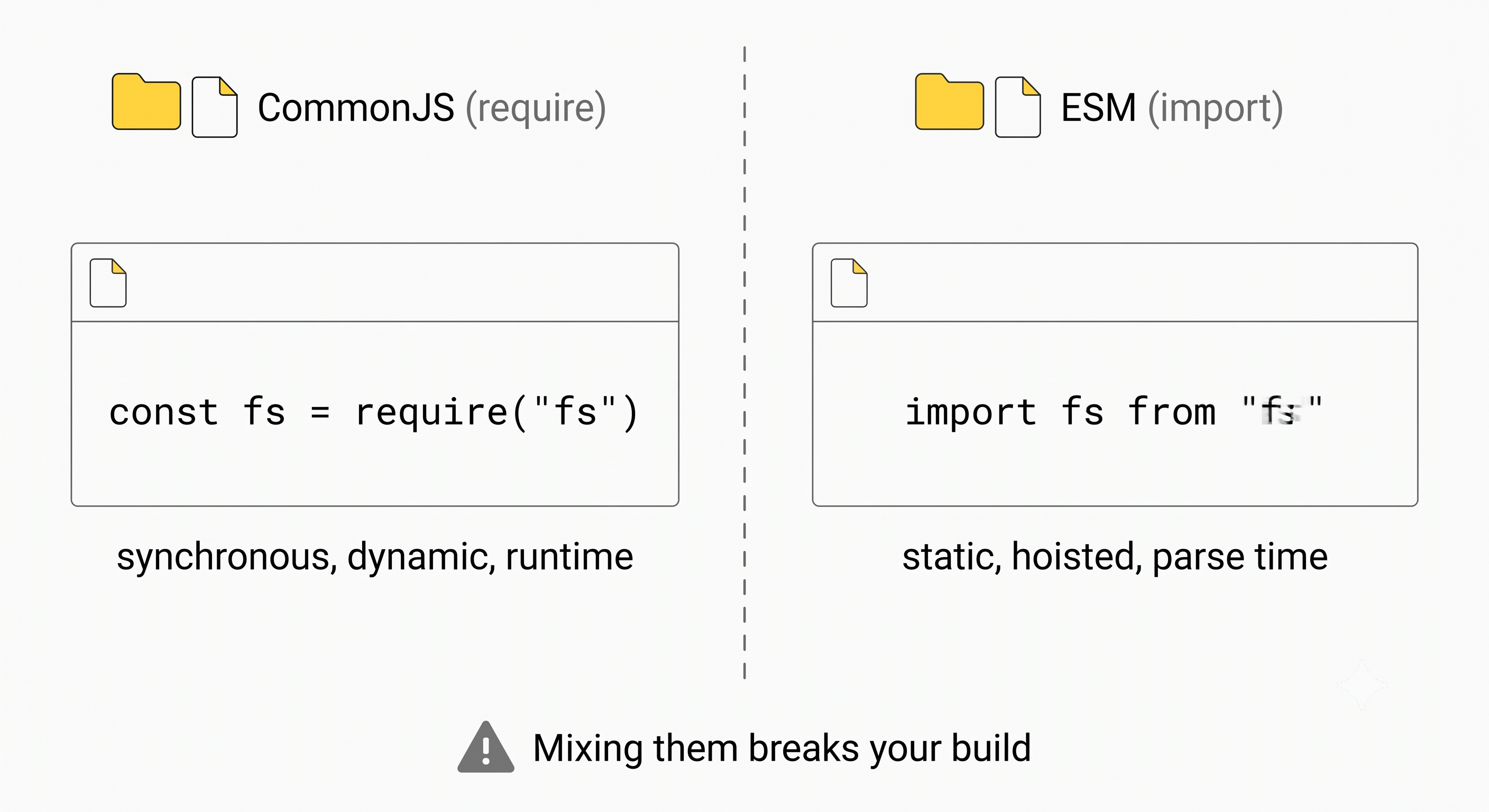
The key differences are highlighted side by side. CommonJS is synchronous and dynamic, while ESM is static and hoisted. Choosing one system and sticking with it throughout the project prevents the most common module resolution errors.
Debugging Module Resolution
When an import fails, the error message tells you the module name but not where Node searched. The most useful tool is require.resolve(‘lodash’), which returns the exact file path Node would load without executing it. If resolution fails entirely, it throws an error that makes it clear whether the package is missing or the path is blocked.
I follow a three-step checklist whenever an import fails. First, I check whether the package is installed in the node_modules folder at the level where Node is searching. Node starts from the importing file’s directory and works upward, so a package installed only in a parent project’s node_modules is invisible to a nested file unless the nesting matches the search path. Running npm ls <package-name> shows which version is installed.
Second, I check whether the package uses the exports field in its package.json. If it does, Node ignores main entirely and only allows imports that match the paths defined in exports. Importing a subpath not listed there throws a “package path not exported” error. The fix is to use an allowed path or ask the maintainer to add the path.
Third, I verify that the module system matches. If the importing file uses import but the package is CommonJS-only without ESM support, the import may fail depending on how the package exposes its API. The type field in package.json determines which syntax is available. Files with .mjs extension always use ESM, while .cjs always uses CommonJS.
These three checks resolve roughly 90 percent of the import errors I encounter. The remaining 10 percent usually involve edge cases like symlinked packages, self-referencing imports, or platform-specific modules that do not exist on the current operating system.
How Bundlers Change Resolution
Bundlers like webpack and Vite extend resolution beyond what Node supports. They can resolve TypeScript, JSX, CSS, and image imports. They support aliases defined in tsconfig. This is why an import that works in development might fail in a plain Node script. If you need to run the same code in both environments, use explicit file extensions and avoid bundler-specific features. For library authors, this means publishing both ESM and CommonJS builds and letting the package.json exports field handle the selection.
Module resolution is one of those topics that seems mysterious until you understand the algorithm. Once you know that Node searches upward through the directory tree, uses the exports field over main when present, and treats ESM and CommonJS differently, most import errors become easy to diagnose. The require.resolve function is your best debugging tool. Keep it in mind the next time an import fails and you are tempted to reinstall node_modules.