I once shipped a search input that fired an API call on every keystroke. The product manager pulled me aside the next day and showed me the network tab. Ten requests in two seconds. The server had rate-limited us. Users were typing a query and seeing empty results because half the requests were failing silently. That was the day I learned that event handling is not just about making things work — it is about controlling when they run.
My first fix was a debounce with a 300ms delay. The API calls stopped flooding. The search worked. I felt clever. Then I applied the same debounce to a scroll handler that tracked the user’s position on a long documentation page, and the UI felt laggy — updates only arrived after scrolling stopped completely. That is when I realized debounce and throttle are not interchangeable. They solve the same category of problem (too many function calls) but in opposite ways, and picking the wrong one makes your fix worse than the original problem.
Short version: Debounce fires after a pause. Throttle fires at a steady rate. Use debounce when you care about the final result (search input, auto-save). Use throttle when you care about steady intermediate progress (scroll, resize).
Debounce
Debounce delays execution until a quiet period passes. Every time the event fires, the timer resets. The function only runs when the events stop coming. Think of an elevator door at a busy lobby. People keep arriving, so the door stays open. Only when nobody arrives for a few seconds does it finally close and the elevator moves.
In code, the implementation is surprisingly short. The pattern appears in every modern JavaScript codebase at some level.
function debounce(fn, delay) {
  let timer
  return (...args) => {
    clearTimeout(timer)
    timer = setTimeout(() => fn(...args), delay)
  }
}
The diagram below shows what happens when a user types three characters quickly. Each keystroke resets the timer. Only after the last keystroke and a 300ms pause does the API call actually fire.
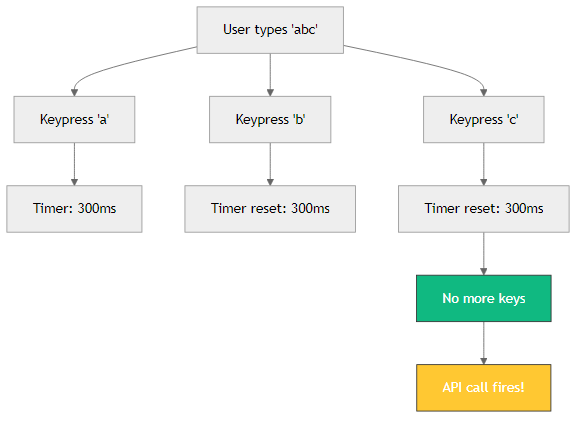
The most common use case is search-as-you-type. When a user types a full query like “javascript debounce,” you want to send the final query to the server, not every intermediate character. Without debounce, a 10-character query fires 10 API calls in roughly 2 seconds. With debounce, it fires exactly one call 300ms after the user pauses. The same pattern applies to auto-save in document editors: wait until the user stops typing, then persist. The delay should match the context — 300ms for typing feels responsive, while 1000ms is better for auto-save to avoid saving too frequently during rapid edits.
Throttle
Throttle enforces a minimum interval between executions. No matter how many times the event fires, the function runs at most once per specified period. Think of a water tap dripping at a fixed rate. You can turn the handle as hard as you want, but the drips stay evenly spaced. The first call fires immediately, and subsequent calls are ignored until the interval passes.
function throttle(fn, limit) {
  let inThrottle = false
  return (...args) => {
    if (!inThrottle) {
      fn(...args)
      inThrottle = true
      setTimeout(() => inThrottle = false, limit)
    }
  }
}
The diagram below shows how throttle handles rapid events. Out of four scroll events that arrive within 100ms, only two actually execute — the first one immediately and the next one after the interval expires. The rest are silently blocked.
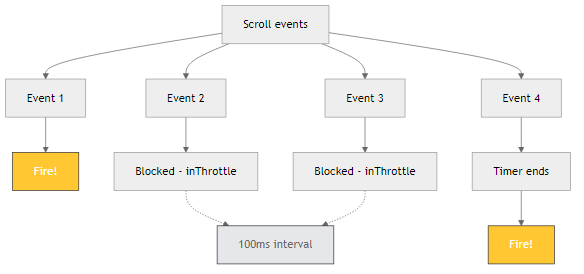
Throttle is essential for scroll handlers. When a user scrolls through a long page, the browser fires dozens of scroll events per second. You want position updates, just not sixty per second — that would overwhelm the layout engine. A throttle with a 100ms limit gives you updates roughly ten times per second, which is smooth enough for the UI and light enough for the CPU. Resize handlers benefit too: recalculate layout at most once every 200ms instead of recalculating on every pixel change during a window drag.
Comparison
The best way to see the difference is to try it yourself. Type the same text in both inputs below and watch the call counts diverge.
The debounce side waits until you stop typing before it logs anything. The throttle side logs steadily as you type, but never more than once per 300ms. If you type a 10-character word in 2 seconds, debounce fires once and throttle fires roughly 6 times. Both are valid — it depends on whether you need the final value or intermediate updates.
Here is a table that formalizes the differences.
| Aspect | Debounce | Throttle |
|---|---|---|
| When it fires | After a pause | At regular intervals |
| First call | Delayed | Immediate |
| Last call | Always fires (if pause occurs) | May be cut off |
| Analogy | Elevator door | Dripping tap |
| Best for | Search input, auto-save | Scroll, resize, progress |
Leading-Edge Debounce
Standard debounce delays the first call. That is perfect for search inputs, but it is wrong for buttons. If a user clicks a submit button, they expect an immediate response, not a 300ms pause. Leading-edge debounce flips the behavior: it fires the first call immediately, then ignores subsequent rapid clicks during the cooldown period.
The difference is subtle in code but significant in user experience. In the standard version, clearTimeout resets the timer on every call, pushing execution further into the future. In the leading-edge version, the first call bypasses the timer entirely because !timer is true. The timer is then set, and all calls during its lifespan are silently ignored. When the timer expires, timer is set back to null, ready for the next leading-edge call.
function debounceLeading(fn, delay) {
  let timer
  return (...args) => {
    const callNow = !timer
    clearTimeout(timer)
    timer = setTimeout(() => timer = null, delay)
    if (callNow) fn(...args)
  }
}
I use this variant for payment buttons, form submissions, and any action where double-clicks are common but the first click must succeed instantly. A good real-world example is a checkout flow: the user clicks “Place Order” once, the request fires immediately, and if they anxiously click again within 500ms, the second click is ignored. Without leading-edge debounce, both clicks would fire and the user would be charged twice or shown a confusing error.
Another useful application is toggle buttons. If a user clicks a dark mode toggle rapidly, you want the first click to take effect immediately and subsequent clicks during the transition to be ignored. Standard debounce would delay the toggle by 300ms, making the UI feel unresponsive. Leading-edge debounce makes it feel instant while still protecting against rapid spam clicks.
Key Takeaway
Debounce waits for silence. Throttle enforces a rhythm. Use debounce when you care about the final result — the completed search query, the saved document, the submitted form. Use throttle when you care about steady progress — the scroll position, the resize dimensions, the download percentage.
When in doubt, start with debounce. It is safer for most UI scenarios. But if the interface feels unresponsive or updates arrive in awkward bursts, ask whether throttle would give the user smoother intermediate feedback. And if you are handling button clicks, reach for leading-edge debounce instead.