

A few years ago, someone told me to add transform: translate3d(0,0,0) to every animated element. “It forces GPU acceleration,” they said. So I did. I added it to everything: buttons, cards, menus, loading spinners. The page performance got worse. Elements flickered. The GPU memory on mobile devices spiked. I had applied the fix without understanding the problem.
The advice is not wrong, but it is incomplete. translate3d promotes an element to its own compositor layer. That is useful in specific scenarios and harmful in others. Since then I have learned to tell the difference by checking three things consistently before adding translate3d to any element: what property is being animated, how often the element changes, and how many layers the page already has.
Short version: Use translate3d only on elements you animate with transform or opacity. Check Chrome DevTools Layers panel to verify that promoting actually improves frame rate. Do not promote every element indiscriminately.
How Compositing Works and When It Helps
How Compositing Works
The browser renders a page in three stages: layout, paint, and composite. Layout calculates where each element goes. Paint fills in the pixels. Composite merges all layers into the final image you see on screen. Changing left or top triggers all three stages. Changing transform or opacity skips layout and paint entirely and only composites.
translate3d promotes an element to its own layer so changes can be composited independently without affecting the rest of the page. That is why CSS animations using transform are smoother than those using position properties. But creating a layer has a cost. Every layer consumes GPU memory, and the browser must decide when to upload and discard each layer’s content. On a desktop with a dedicated GPU, memory is abundant. On a mobile device where the GPU shares memory with the rest of the system, every layer counts.
When It Helps
The most common case is CSS animations. If you animate position or scale with transform, promoting the element to its own layer avoids repainting the area behind it on every frame. I once fixed a carousel slider that stuttered on every slide transition by switching from left to transform: translateX(). The paint time dropped from 12ms to under 1ms. The same fix applies to flip cards, drag-and-drop interactions, and parallax scrolling. In each case, the element moves independently and the layer promotion prevents the browser from repainting the background area on every animation frame.
Sticky and fixed position elements also benefit. When a user scrolls, a sticky header needs to stay in place while the rest of the page paints behind it. Without its own layer, the browser repaints the header on every scroll frame. With its own layer, the header is cached as a bitmap and only the composite step updates. This keeps the scrolling smooth even on pages with complex backgrounds or multiple sticky elements.
Try the demo below. Both boxes move the same distance in the same time, but the top one animates left while the bottom one animates transform. The estimated paint times show the difference.
The red box animating left triggers layout and paint on every frame, which is why the estimated paint time is significantly higher. The green box animating transform skips layout and paint entirely and only composites, making it much faster. Both boxes move the same distance in the same duration, but the performance cost is completely different. This is the difference between promoting the element to its own compositor layer and letting it render in the normal flow.
When It Hurts
Every layer consumes GPU memory. On a desktop with a dedicated graphics card, you can have hundreds of layers before noticing issues. On a mobile device with shared memory, ten to twenty layers can cause visible jank. I learned this when a product page with fifty promoted product cards dropped to 15 frames per second on an older iPhone. The page had too many layers, and the GPU could not keep up. Removing translate3d from the static elements and keeping it only on the animated ones brought the frame rate back to 60fps.
Layers with frequently changing content also hurt. Promoting a video player or a live-updating chart forces the browser to re-upload the layer content to the GPU on every frame. The promotion adds overhead instead of removing it. I made this mistake with a real-time dashboard that updated every second. The charts were wrapped in promoted containers thinking it would make them smoother. Instead, the browser re-uploaded the chart bitmaps to the GPU sixty times per second even though the data only changed once per second. The promoted chart layers consumed so much memory that the page became unresponsive after a few minutes.
The illustration below shows what happens when too many elements are promoted. The phone screen fills with layers, each consuming GPU memory.
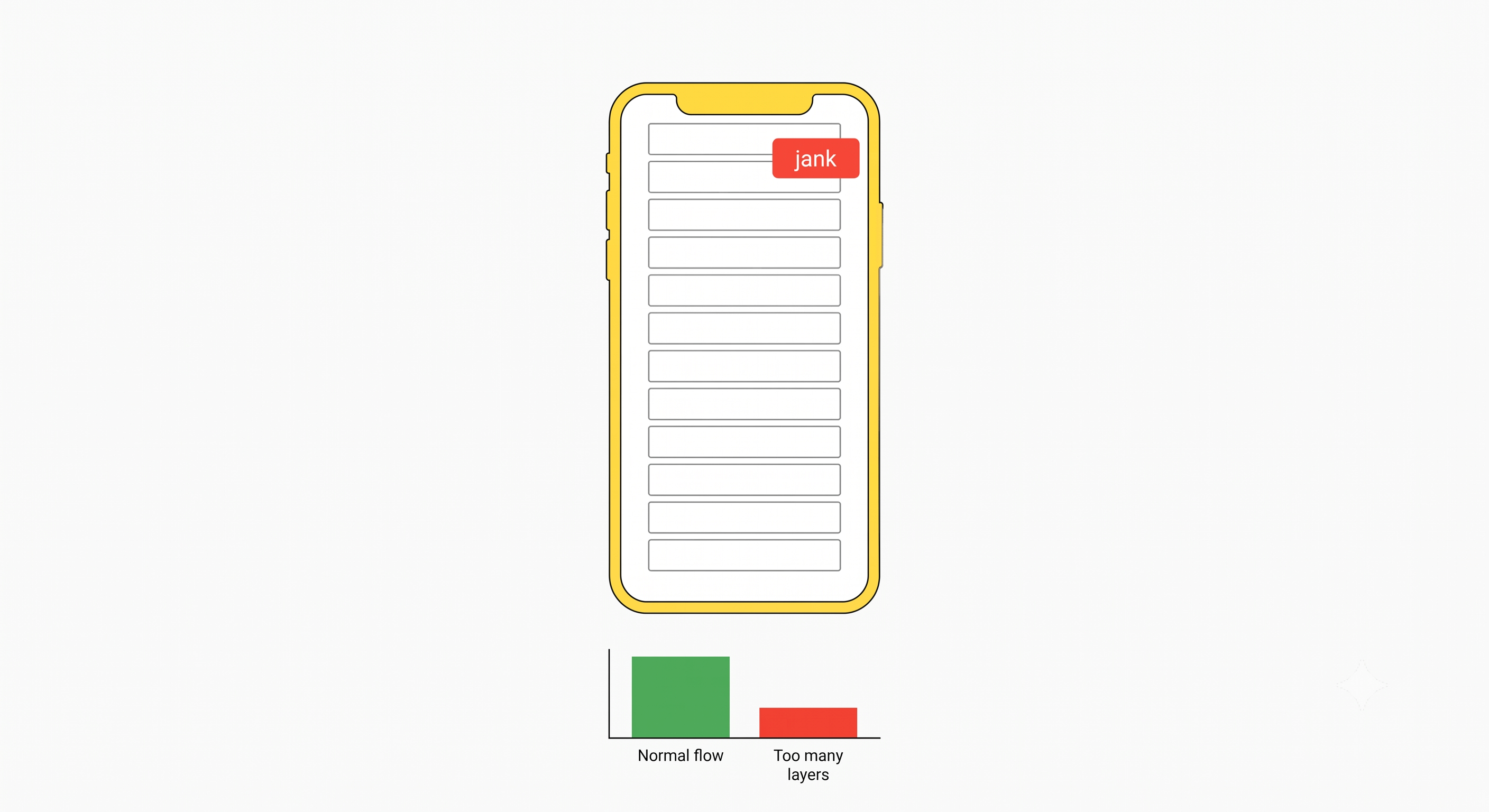
The rule is straightforward: promote only elements that change independently. Static content and large lists do not benefit from promotion.
Here is a quick reference for when promotion helps versus when it hurts.
| Scenario | Promote? | Why |
|---|---|---|
| CSS animation with transform | Yes | Skips layout and paint entirely |
| Sticky header / fixed element | Yes | Avoids repaint on every scroll frame |
| Static card in a grid | No | Wastes GPU memory, no animation benefit |
| Video / live-updating chart | No | Forces GPU re-upload on every change |
| Large list (50+ items) | No | Too many layers overwhelm mobile GPU |
How to Check
Chrome DevTools has a Layers panel that shows every compositor layer on the page, its memory usage, and why it was promoted. I use it whenever I suspect layer-related performance issues. Open it, scroll through your page, and look for layers you did not intend to create. If you see hundreds, you are promoting too aggressively. If an animated element does not have its own layer, it is not being promoted when it should be. I check the Layers panel on every project before launch to catch unintended layer creation. Adding translate3d to the element’s CSS will create the layer, and the Layers panel will confirm it immediately. I recommend checking three elements on every page: the main navigation, any carousel or slider, and any modal overlay.
Before adding translate3d to any element, ask: is this element going to change independently of the rest of the page? If the answer is yes and the change uses transform or opacity, promote it. If the answer is no or the element changes rarely, leave it in the normal flow. The performance panel will tell you whether your assumption was correct. A simple thirty-second check before deploying can prevent the kind of performance regression that takes hours to track down later.
The key is knowing when a layer helps and when it adds cost. Understanding the rendering pipeline makes it easy to decide.